
Overview
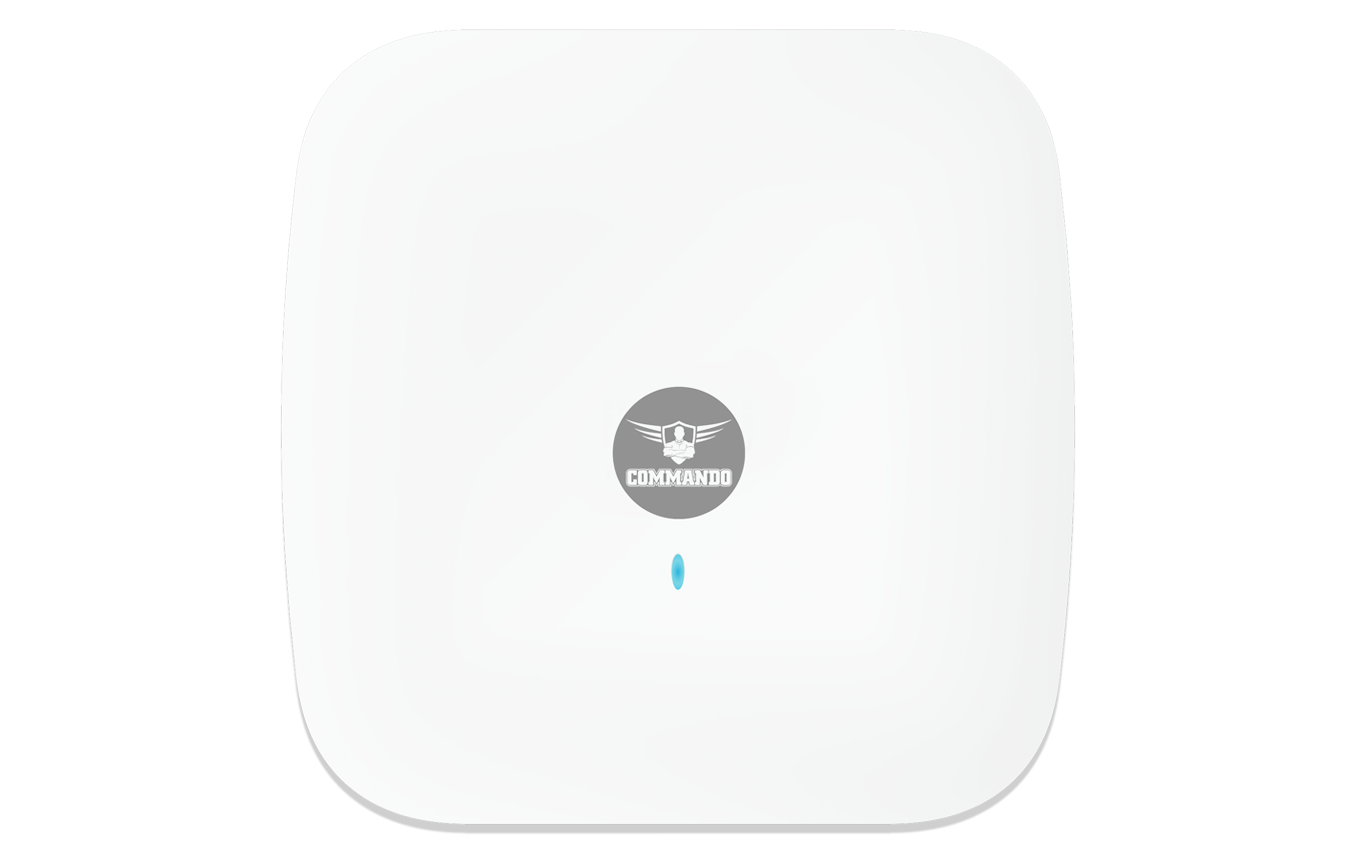
COMMANDO AirX Wireless AIR-AP3000AX is Cloud based, enterprise-class wall/ceiling indoor (802.11ax) Wi-Fi 6 wireless access point which works in standalone, FAT mode as well as Controller based FIT mode of operation and provides wireless users with speed up to 2976Mbps with advanced Wi-Fi 6 Technology. It comes with dual band, equipped with separate 1Gbps WAN port & 1Gbps LAN port. It supports 2x2 MU-MIMO and provides data rate up to 2976Mbps for wireless users and supports concurrent 70 wireless clients with simultaneous upload or download of multiple packets at same time which enhances the sharing of files, photo, audio, video, and gaming experience over wireless network.
It supports Seamless Roaming, OFDMA, 1024-QAM, narrower sub-carrier spacing and longer symbol time which improves the stability and data processing efficiency. It can provide powerful wireless coverage to enterprise environments such as small, medium, and large enterprises, university campuses, concert venues, gymnasium, etc.It is powerful, long range & advance Wi-Fi 6 wall/ceiling indoor Access Point supports range of 20meters and above in all direction depending on surrounding conditions with up to 20dBm transmit power for 2.4G, 19dBm transmit Power for 5G.
It is industrial grade Ceiling IEEE 802.3af/at 48V PoE/PoE+ standard, install at every place to work as an stable base station for access users. It is equipped with separate backward compatible 10/100/1000Mbps Ethernet WAN and 10/100/1000Mbps LAN port. It supports (IEEE 802.3af/at) PoE/PoE+, which helps in easy installation by eliminating the need of a dedicated power source and need of a power adapter. It can identify and determine the correct transmission speed and half/full duplex mode of the attached devices. It also supports standard Auto-MDI/MDI-X that can detect the type of connection to any Ethernet device without requiring special straight or crossover cables, Store-and-Forward forwarding scheme to ensure low latency and high data integrity.
It can install at every place to work as a stable base station for wireless users.
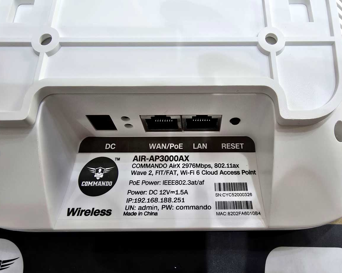
Fig 1. Physical port & Description on AIR-AP3000AX
Table 1. Physical port on AIR-AP3000AX Description.
| Physical Port | Description |
| Reset | Reset Button, makes AP revertto default settings after pressing for 15sec. |
| WAN/PoE | WAN Port, connectwith PoE+. |
| LAN | Dedicated LAN Port |
| DC | DC inputpower 12V, 1.5 A. |
Lightning-Fast AX3000 WiFi 6 Speeds
New-era business WiFi 6 with speeds up to 2976 Mbps brings more than twice the speed of WiFi 5. Every application feels more fluid with drastically improved WiFi speeds with 1024 QAM with 25% more data encoded at one time. Long OFDM Symbol able to achieve 11% faster speed with 160MHz Channel Width. It also supports double the data at peak transmission times on a single stream.
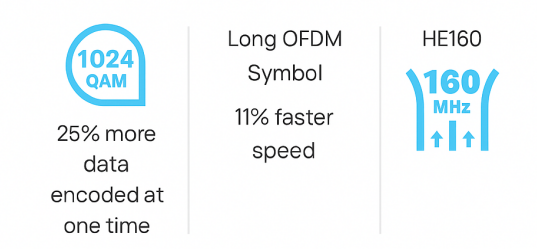
Fig 2. AIR-AP3000AX advantage
Important Note: Access IP for AIR-AP3000AX is 192.168.188.251 and default password is commando.
Recommended: It is required to delete browser history before taking access of device as it can give catch pages error for access of device.
It supportsthree operational modes FIT, FAT & FAT Routing operationmode. In FIT mode, AP works with the RouteX Controller and all configuration is centrally managed by controller. In FAT mode, AP can use WEBGUI and configure standalone AP. In FAT routing mode can also work as gateway alone with standalone AP operation (Default mode is FIT-AP mode). It supports up to 80 wireless users/clients & supports distance of 20 meters and above from AP in all directions for wireless clients. It is industrial grade Wall/Ceiling Outdoor Access Point with speed up to 3000Mbps which enhances the sharing of files, photo, audio, video and gaming experience over wireless network. It can also be used as DHCP server and works as layer 3 device when configured in FAT-Routing mode. It supports (IEEE 803.3af/802.3at) PoE/PoE+, which helps in easy installation by eliminating the need of a dedicatedpower source and need of a power adapter. It can identify and determine the correct transmission speed and half/full duplex mode of the attached devices. It also supports standard Auto-MDI/MDI-X that can detect the type of connection to any Ethernet device without requiring special straight or crossover cables,
You can access and manage AIR-AP3000AX using the Web based GUI (Graphical User Interface) , also called WEB-GUI interface.
Introduction
It supports FIT/FAT operation mode. In FIT mode, AP works with the RouteX Series controller and all configuration is centrally managed by controller. In FAT mode, AP can use WEBGUI and configure AP and routing mode. Default mode is FIT mode. COMMANDO AirX AIR-AP3000AX is dual radio Wi-Fi 6 Cloud Indoor Access Point. It works in standalone as well as Controller-based mode. RouteX Series Controller enables communication between wireless users with speed up to 3000Mbps with advanced Wi-Fi 6, OFDMA technology with built-in 2dBi FPC dual band MIMO Antenna. It is standalone device, comes with dual band with 2.4GHz (600Mbps 11ax 2x2) + 5GHz (2400Mbps 3x3), equipped with separate 1G WAN ports and LAN ports. The supports MU-MIMO and DL/UL-OFDMA modulation with 80 end users. These multiple users can upload or download multiple packets at the same time.
It is powerful, long range & advance Wi-Fi 6 wall/ceiling indoor Access Point supports range of 20meters and above in all direction depending on surrounding conditions with up to 20dBm transmit power for 2.4G, 19dBm transmit Power for 5G. It is industrial grade Ceiling IEEE 802.3af/at 48V PoE/PoE+ standard, install at every place to work as an stable base station for access users.It is equipped with separate backward compatible 10/100/1000Mbps Ethernet WAN and 10/100/1000Mbps LAN port.
It can install at every place to work as a stable base station for wireless users. Its ceiling-mounted design, integrated Ethernet interface, and sleek appearance make it easy to deploy, and it can be seamlessly integrated into the ceiling or wall without disrupting the overall interior design layout. It is an ideal choice for wireless access in large-scale, low-density, high-bandwidth environments. It supports (IEEE 802.3af/at) PoE/PoE+, which helps in easy installation by eliminating the need of a dedicated power source and need of a power adapter. It can identify and determine the correct transmission speed and half/full duplex mode of the attached devices. It also supports standard Auto-MDI/MDI-X that can detect the type of connection to any Ethernet device without requiring special straight or crossover cables, Store-and-Forward forwarding scheme to ensure low latency and high data integrity.
1. COMMANDO AIR-AP3000AX FAT mode works as autonomous / standalone
How to take access of COMMANDO AIR-AP3000AX?
1) Wired access Via LAN port connectedto PC. (Method-1)
PowerON AIR-AP3000AX eitherby PoE/PoE+ switchor 12V, 1.5A adapter. Connect LAN port of AIR-AP3000AX to PC via RJ-45 cable.
Open Network and sharing enter. Go to Change adapter settings .
Double click on Local Area Connection. Go to Properties. Double click on Internet Protocol Version 4 (TCP/IPv4) option and set any IP address form 192.168.188.1 to 250 and Gateway of PC to be set as 192.168.188.251 to as shown below.
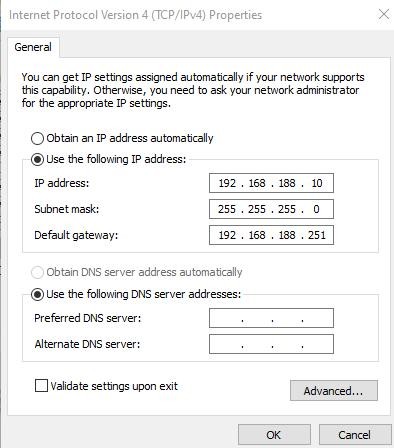
Fig 3. IP settingin PC connected to AIR-AP3000AX
Important Note: Clear browser history to mitigate cache web pages issue.
Open Browser and give IP address 192.168.188.251.
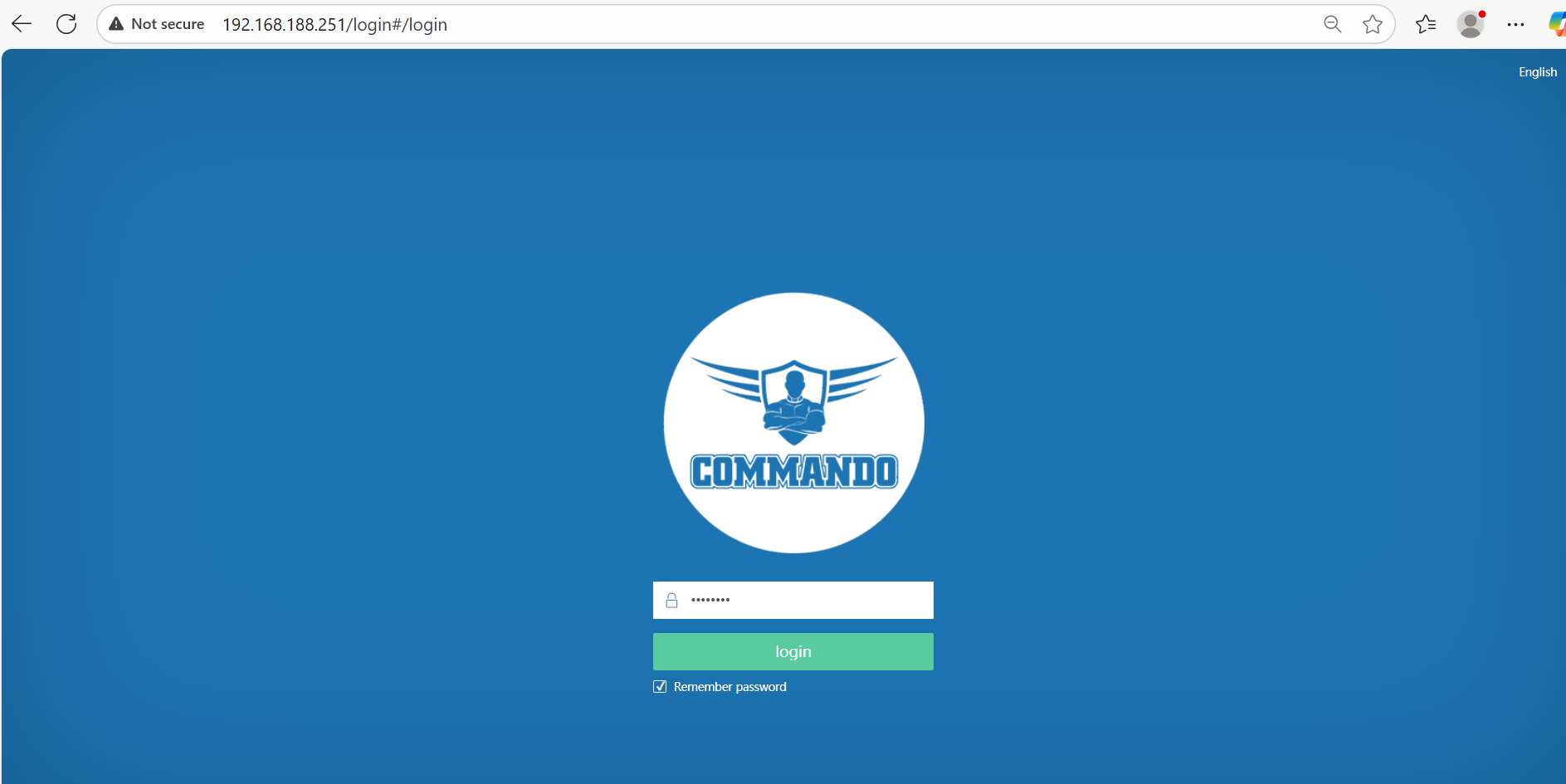
Fig 4. Access page of AIR-AP3000AX
Note: By default password is commando. Please password changed as per user requirement.
2) Wireless access Via SSID connected to PC.
Power ON AIR-AP3000AX.
Connect Default SSID named “2.4G_default” or “5G_default” with no default WiFi Password required. It is open to all by default.
Click on properties of connected SSID “2.4G_default” or “5G_default”.
Edit IP setting from DHCP to Manual and set any IP address form 192.168.188.1 to 250 and Gateway of PC to be set as 192.168.188.251 to as shown below.
Note: All Default SSID and password can be changedas per user requirement.
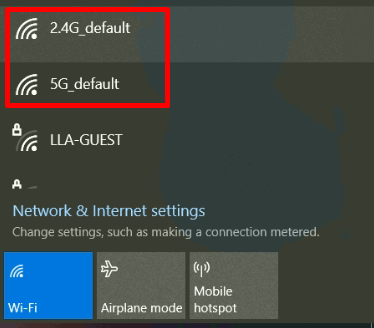
Fig 5. Default Open SSID of AIR-AP3000AX
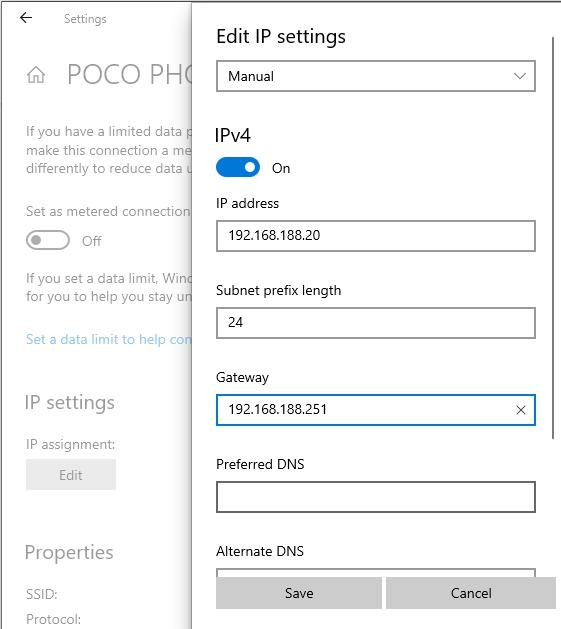
Fig 6. Edit IP setting from DHCP to Manual as shown for 2.4G_default
Open any web browser like Chrome/Firefox/Internet Explorer/Opera etc and enter default IP address 192.168.188.251 in address field.
Caution: If you have already taken any Other COMMANDO wireless device access. Then before taking access of this device, you are required to clean the browser history to avoid catch pages issue.
Important Note: If you reset it by pressing Reset button to factory reset then access page will come in Chinese language.
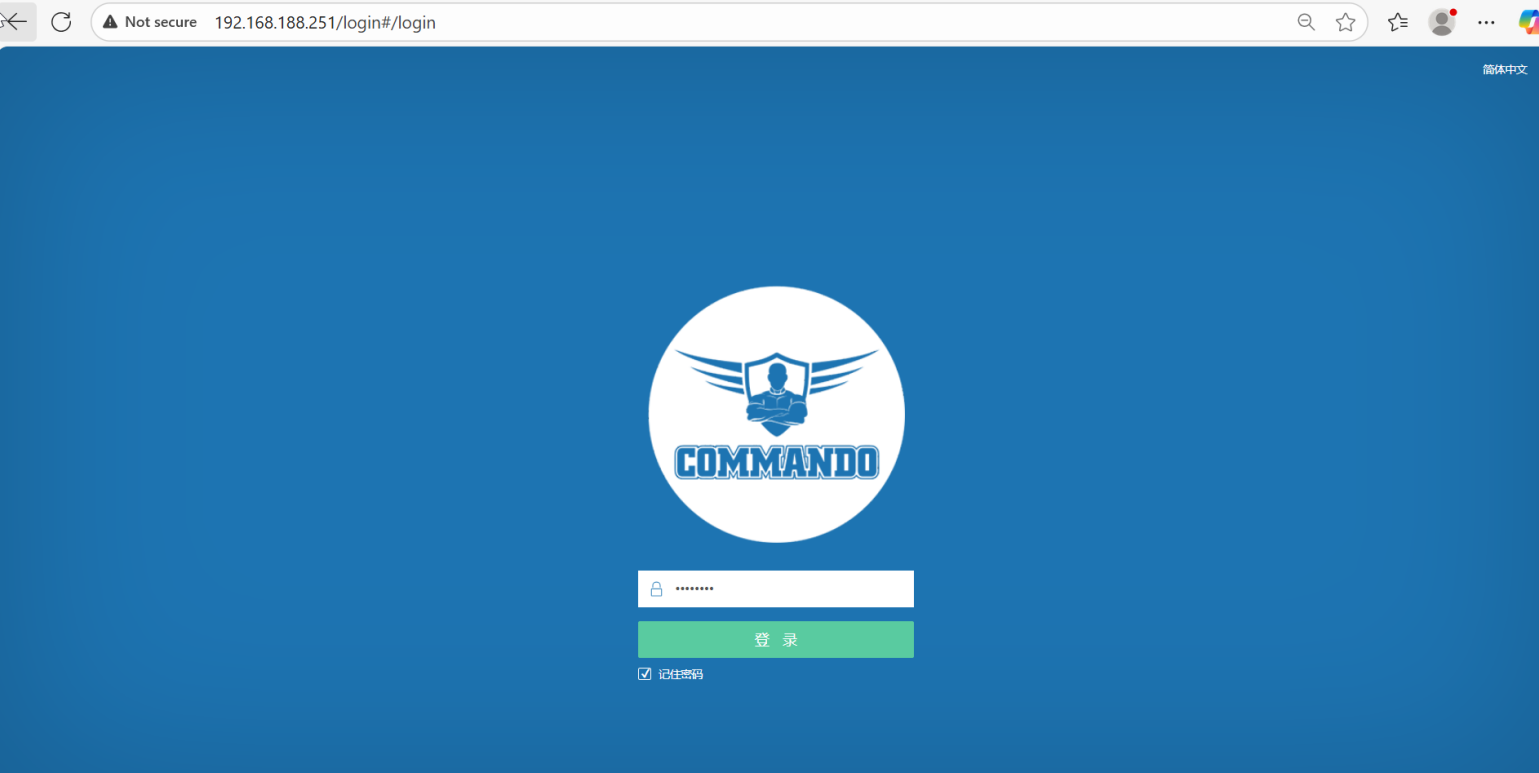
Fig 7. Login page for AIR-AP3000AX Page
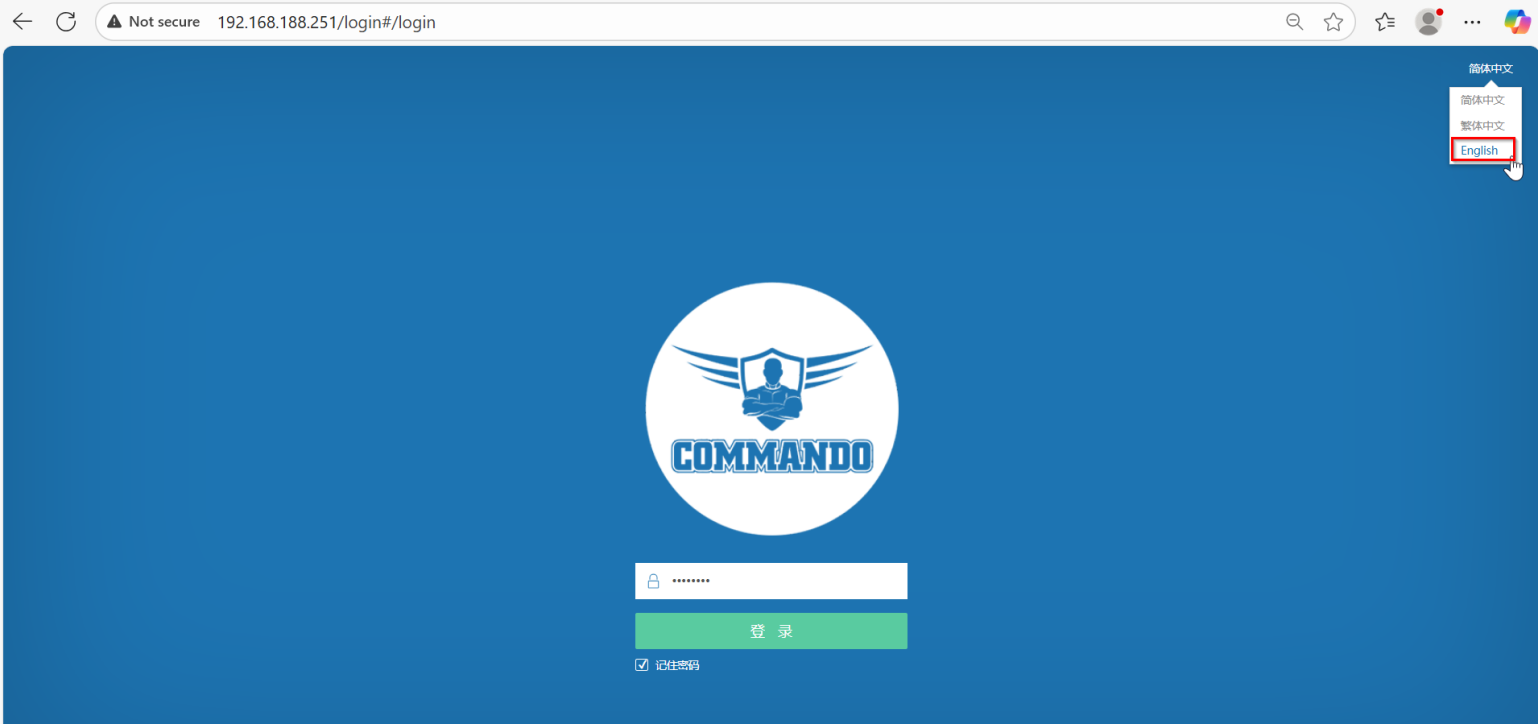
Fig 8. To change Login Language to English for AIR-AP3000AX Page
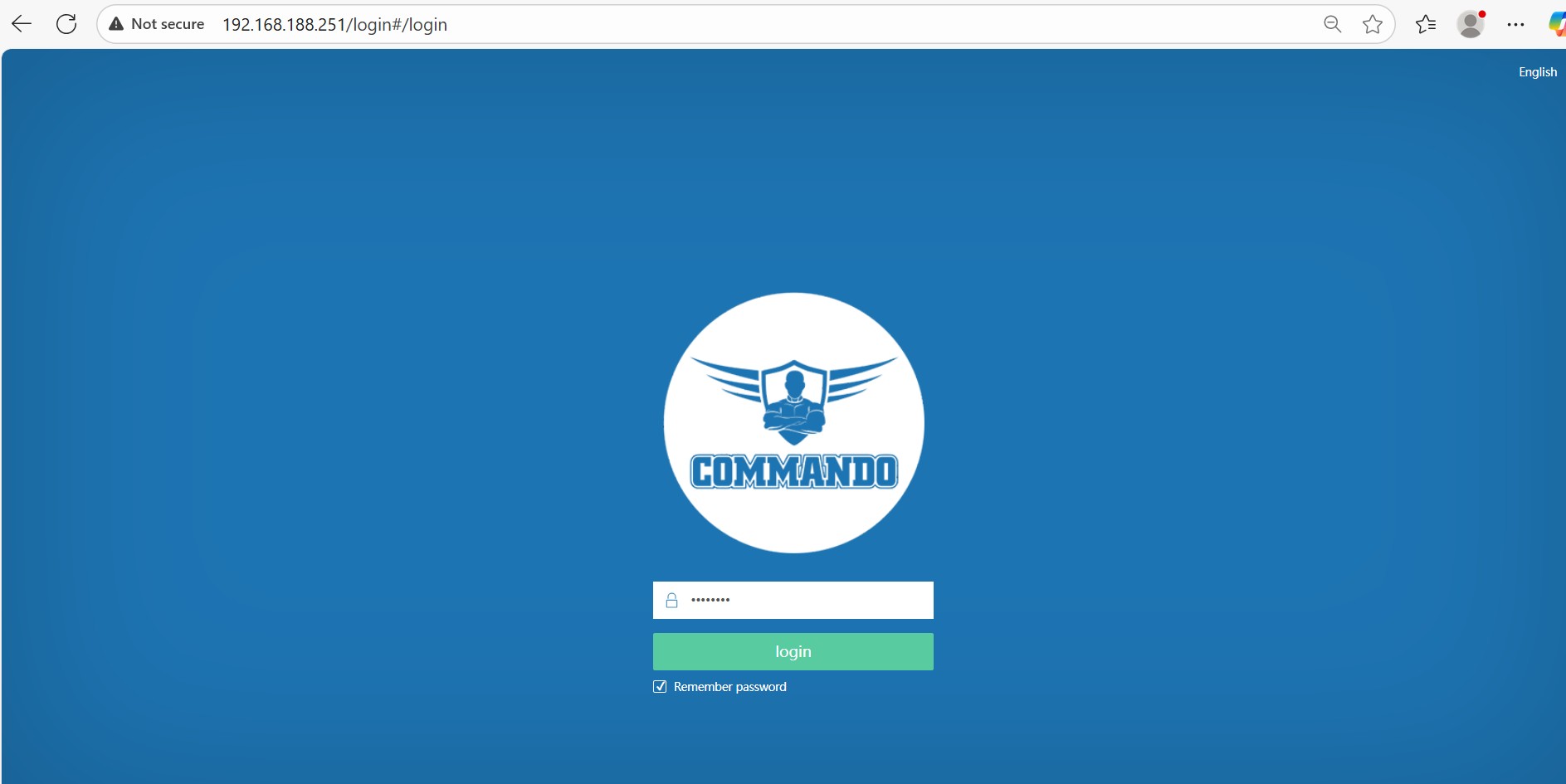
Fig 9. Loginfor AIR-AP3000AX Page
Note: By default password is commando.
This password can be changed as per user requirement.
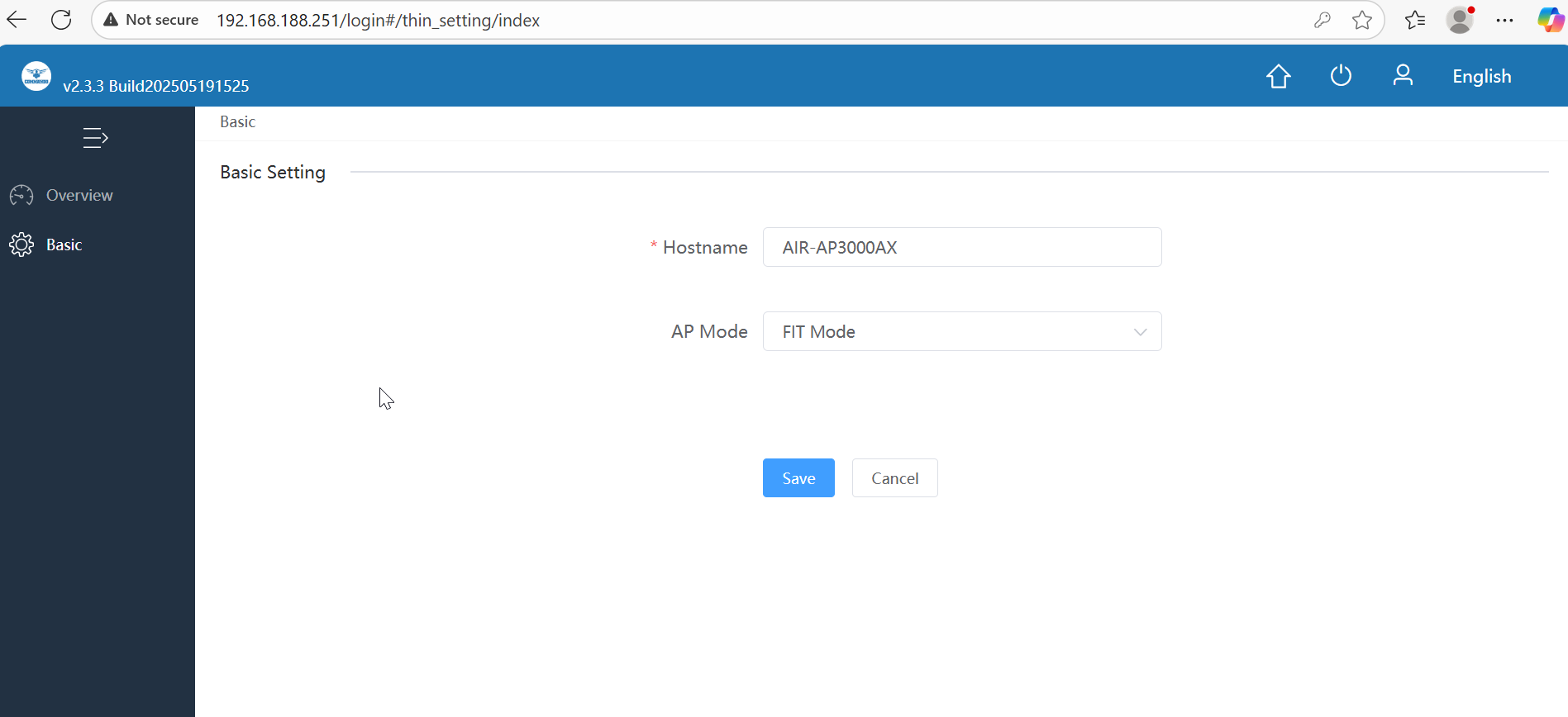
Fig10. Login page for AIR-AP3000AX Page
After getting this page select mode for operation for AIR-AP3000AX
1. FIT Mode: Default mode of operation and works with RouteX Controller.
2. FAT-Routing mode: Select this mode to be managed AP to be connected to the AP LAN for management. When using the whole network management function, the AP mode should be switched to FAT-routing mode or FAT-AP mode, and the superior equipment should turn off the AC management function.
3. FAT-AP mode: There is no limit to selecting the AP connection interface in this mode. The managed device is set wireless in Wi-Fi settings, and separate SSID setting is not supported.
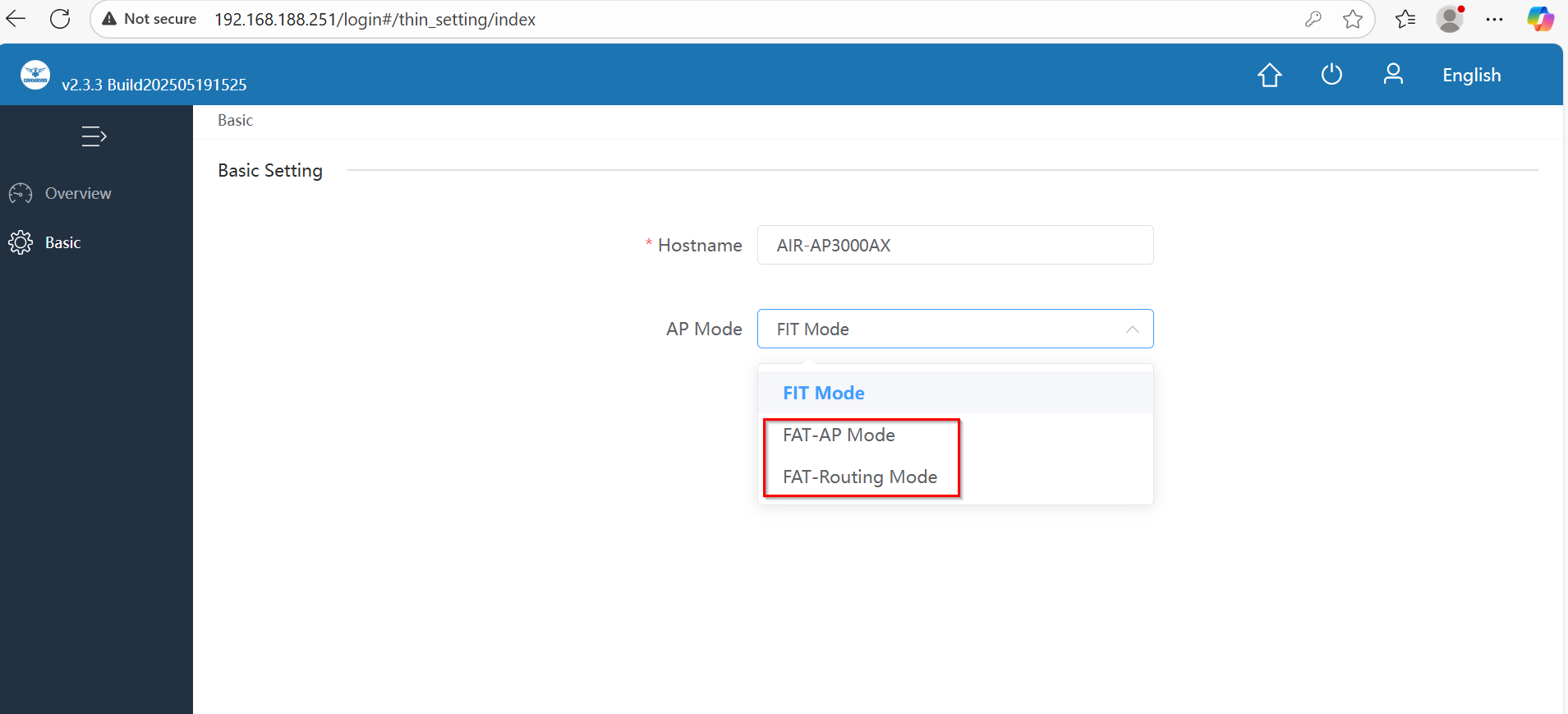
Fig 11. Selection of FAT mode of operation for AIR-AP3000AX Page
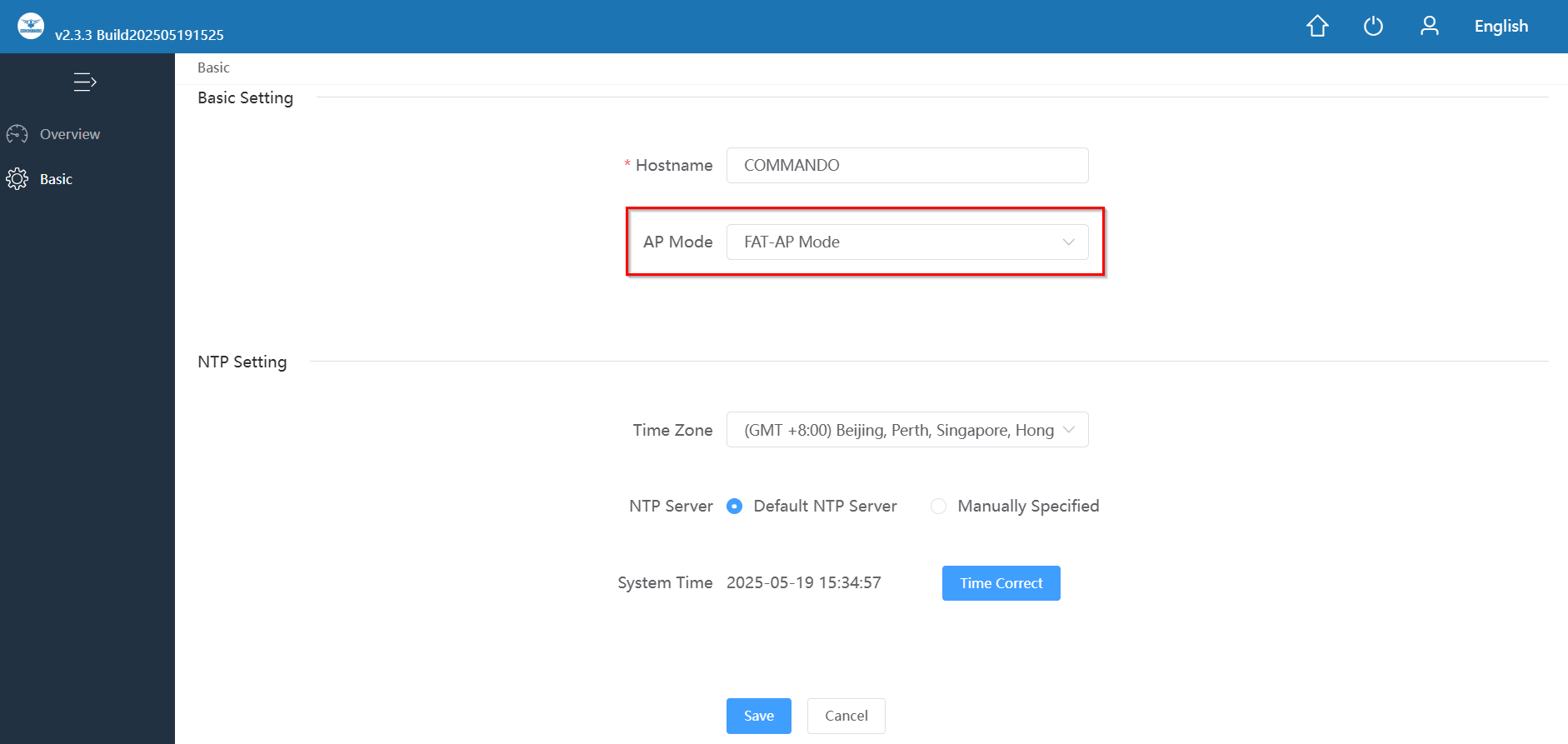
Fig 12. Selected of FAT-AP mode of operation for AIR-AP3000AX Page
After selecting mode save and confirm.

Fig 13. Switching FAT-AP mode of operation for AIR-AP3000AX Page
Note: Enter the Password commando
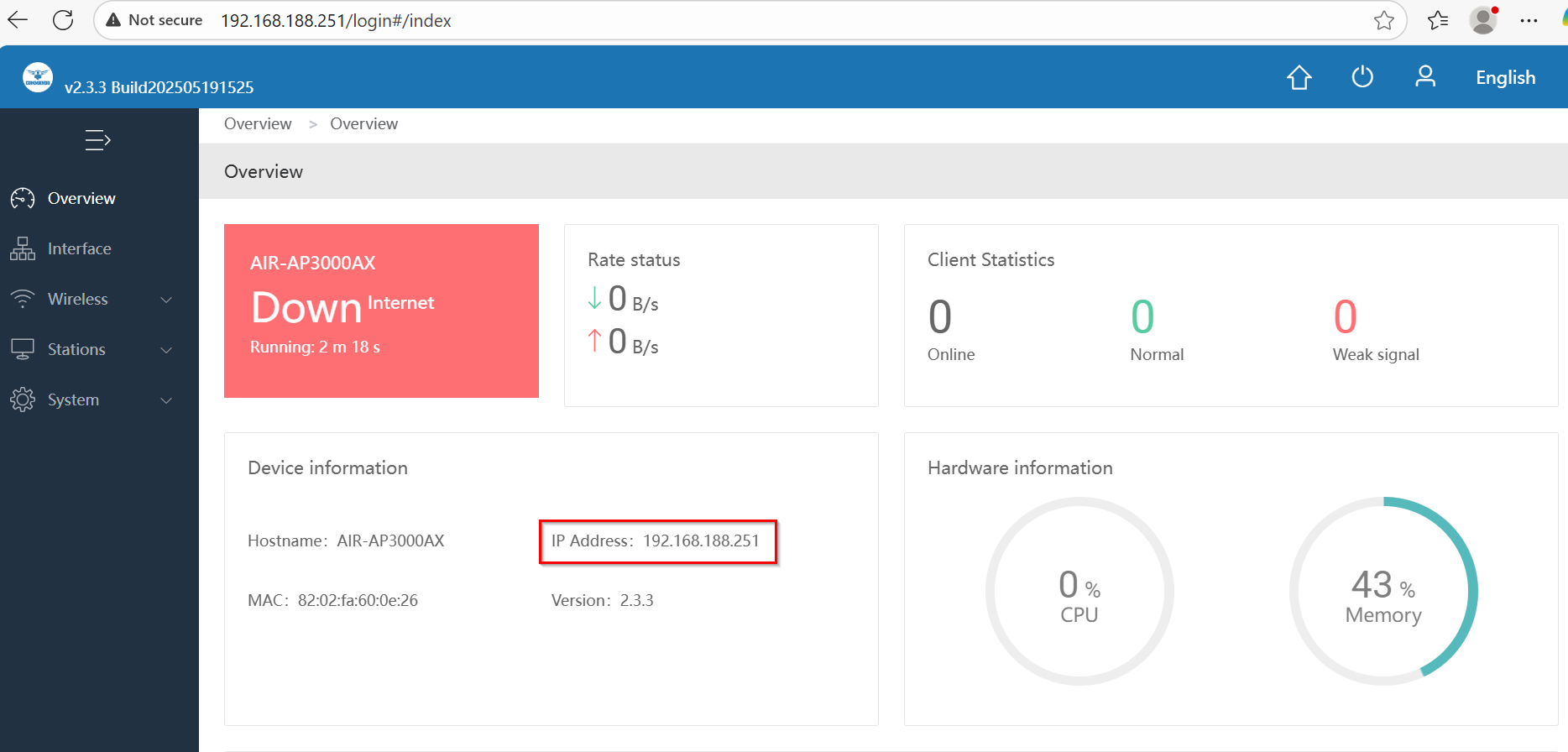
Fig 14. Switching FAT-AP mode of operation for AIR-AP3000AX Page
Very important to understand that if you are connecting WAN with DHCP setting on other router/gateway/ device then the default IP 192.168.188.251 will be changed to IP got from DHCP server due to following default setting in COMMANDO AP.
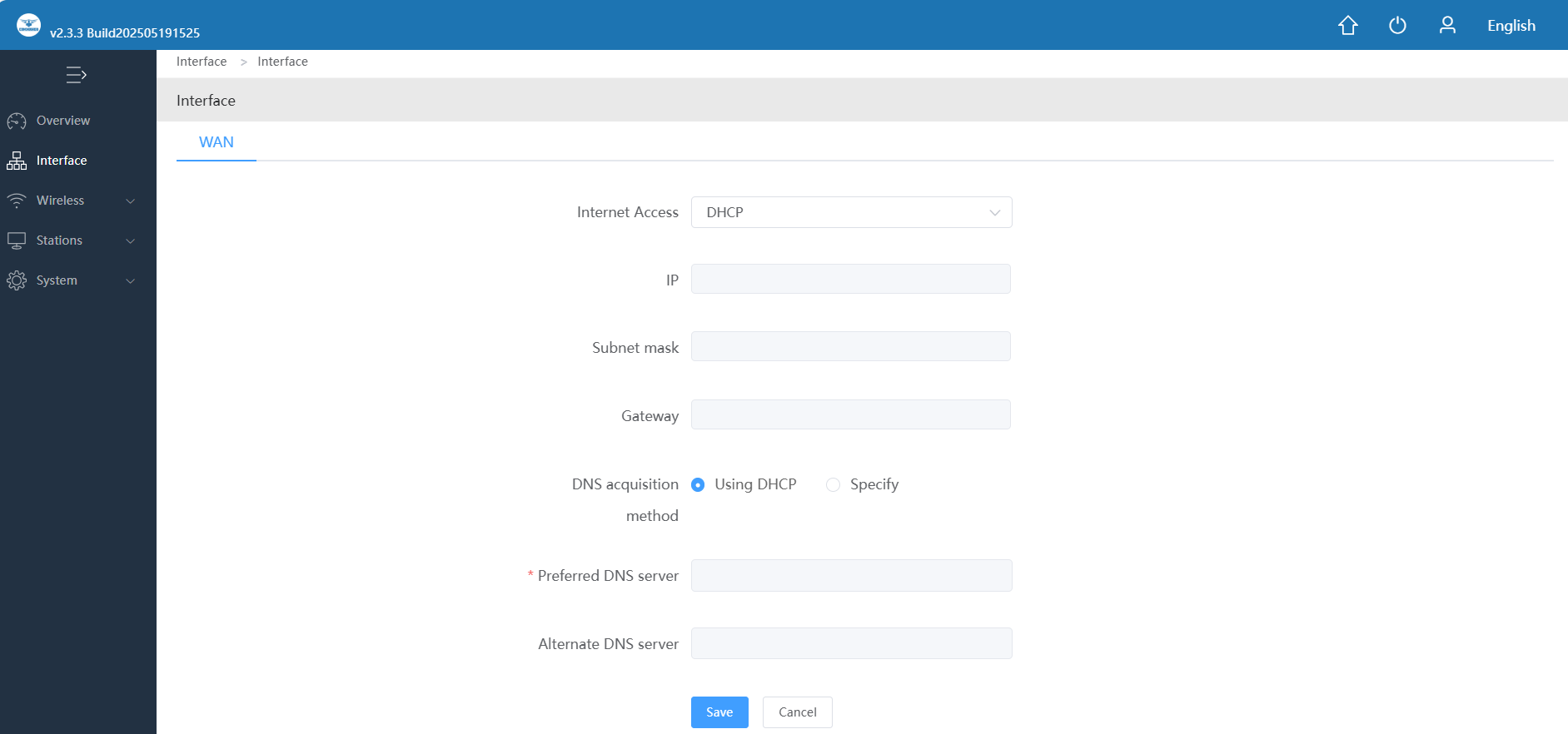
Fig 15. WAN setting in FAT-AP mode of operation for AIR-AP3000AX Page
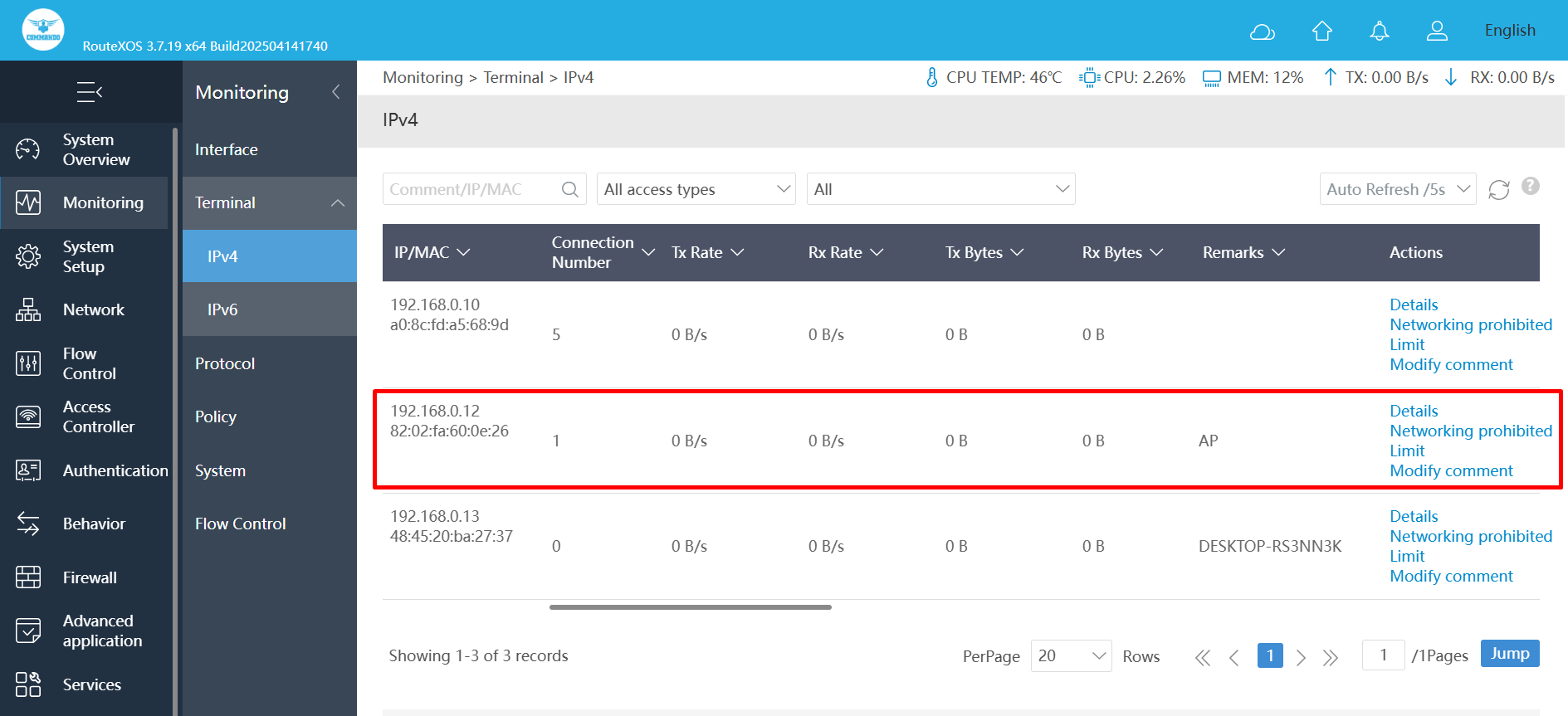
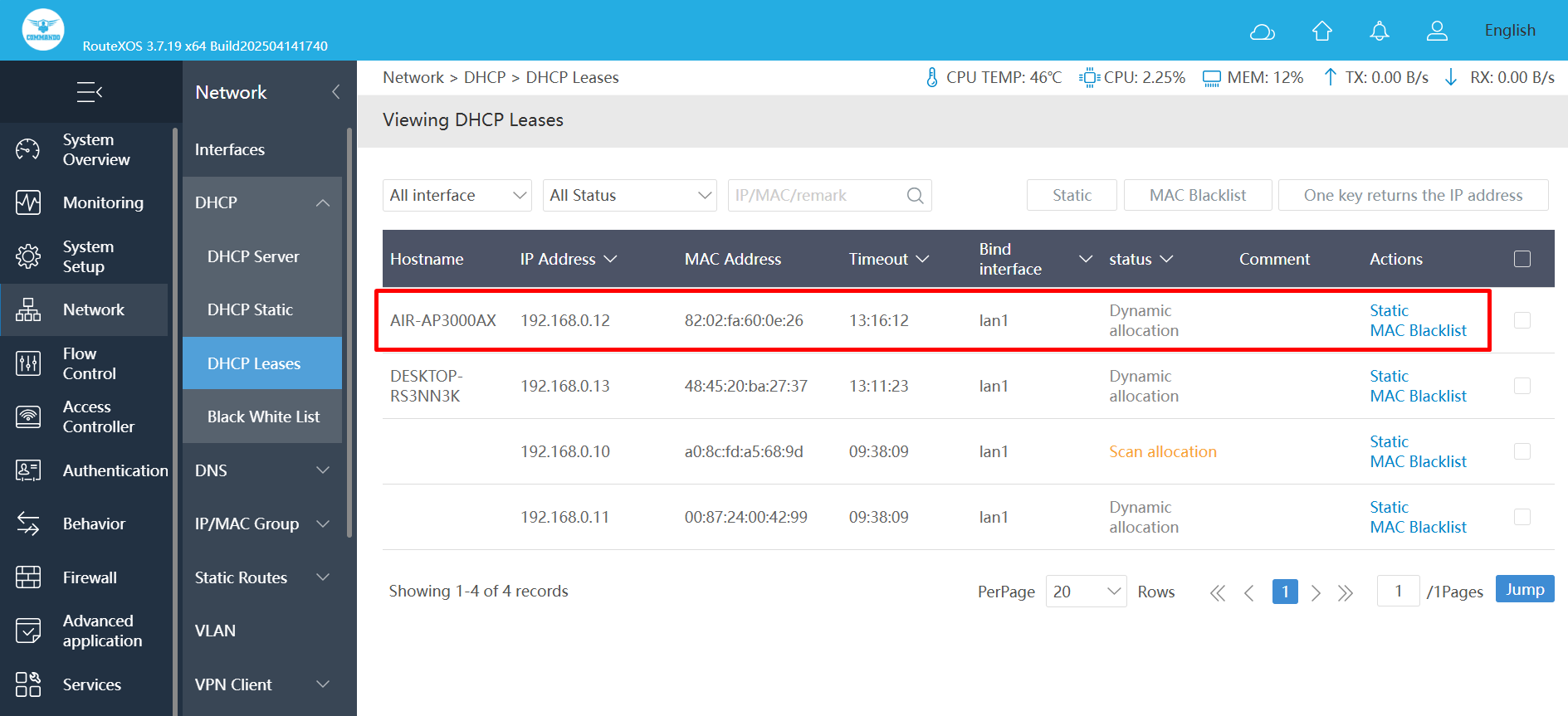
Fig 16. New IP for WAN from DHCP Page
Now this default IP 192.168.188.251 will not work and taken over by new IP 192.168.0.12 provided by DHCP server providing internet.
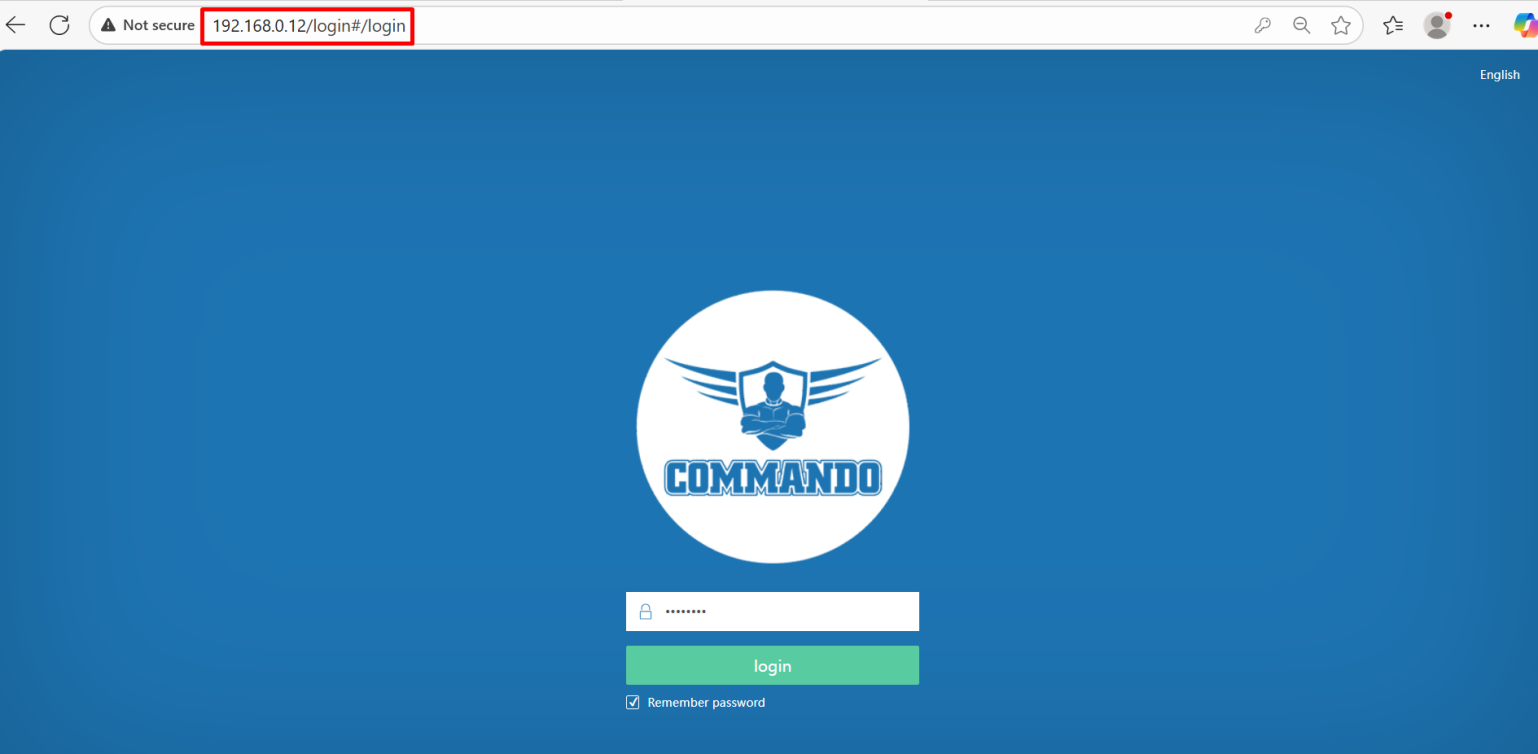
Fig 17. New DHCP IP on WAN port access page AIR-AP3000AX Page
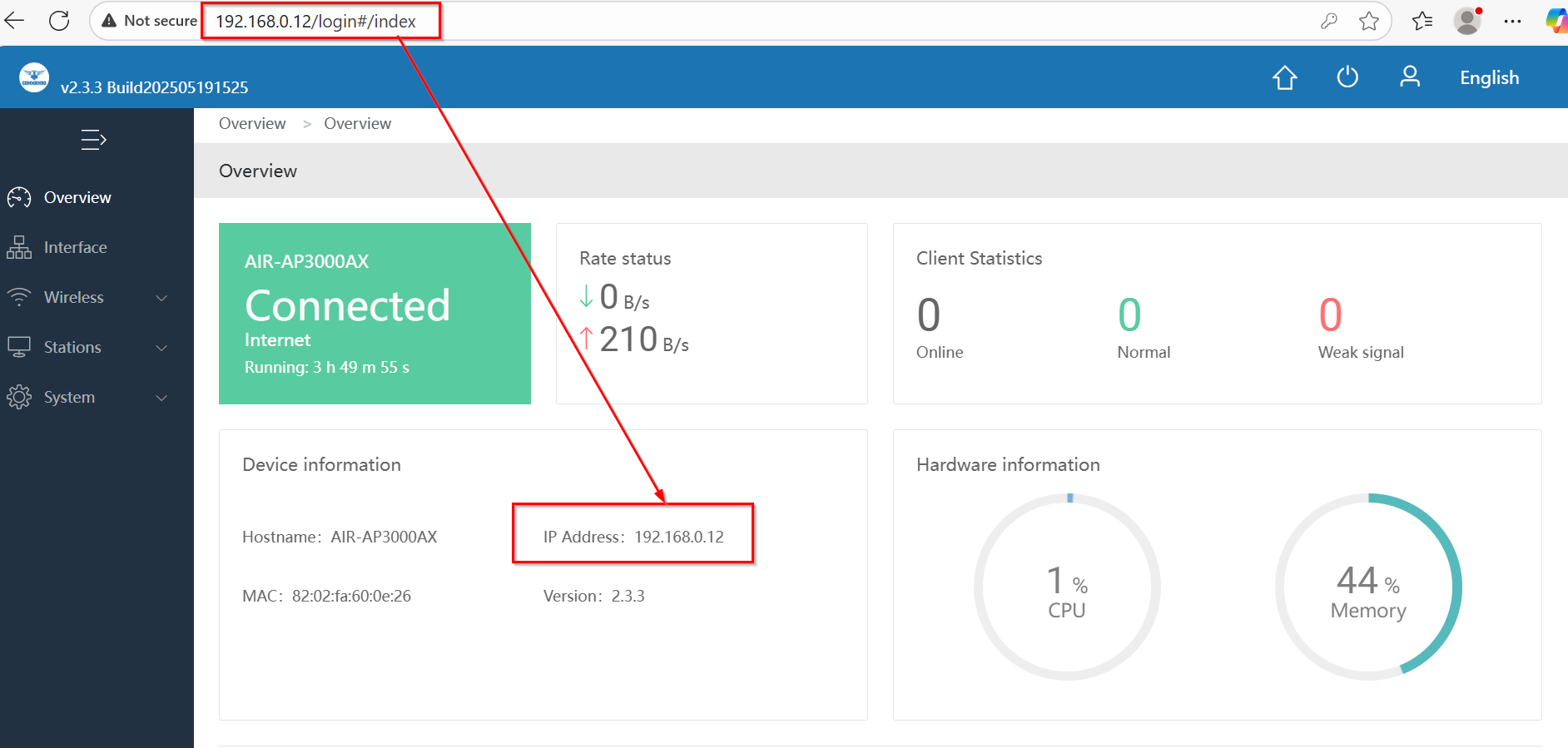
Fig 18. Access of AIR-AP3000AX Page
Common issues faced While access of AP3000AX access of device. This is due to Web page Browsing history issue.
Problem faced Ex-1: After changing the mode to FAT AP menu not shown.
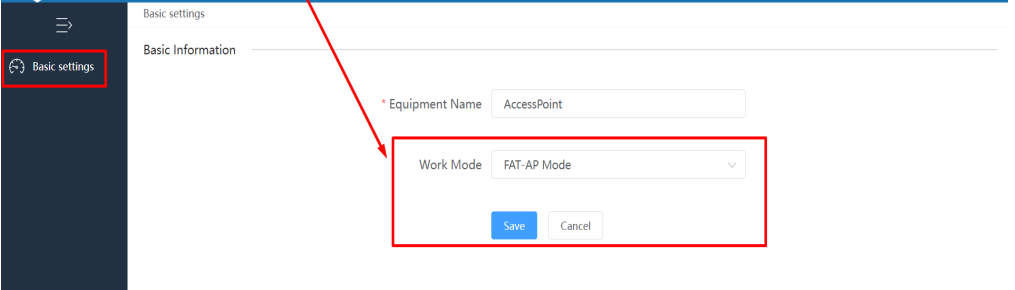
Fig 19. Access of AIR-AP3000AX in FAT AP mode browsing history error Page
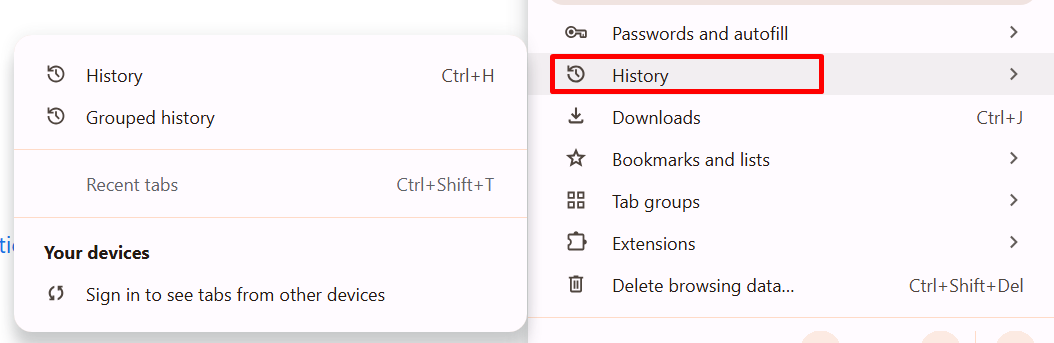
Fig 20. History of Web pages error Page
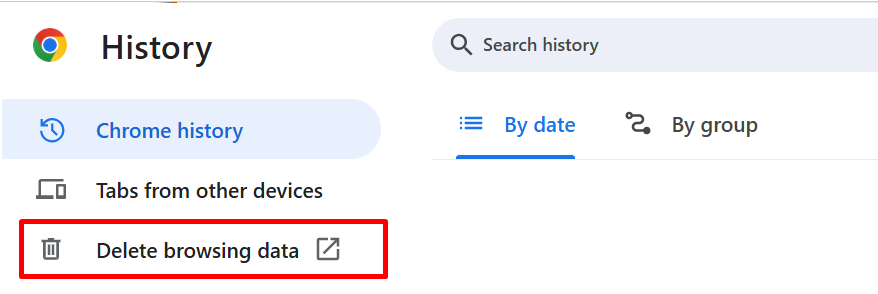
Fig 21. Delete History of Web pages for all times Page